YASGUI User Guide
Yet Another SPARQL GUI (YASGUI) is a powerful, user-friendly interface for querying and exploring RDF data using SPARQL. This guide will help you understand and make the most of YASGUI's features.
Table of Contents
- YASGUI User Guide
- Table of Contents
- Introduction
- What is SPARQL?
- Getting Started
- Components Overview
- Features
- Themes
- Layout Orientation
- Query Formatting
- CONSTRUCT Query Validation
- Code Snippets
- Fullscreen Mode
- Prefix Management
- Endpoint Quick Switch
- Configuration Import/Export
- URI Explorer
- Query Tabs
- Settings Modal
- SPARQL Endpoints Management
- Managed Queries and Workspaces
- Query History and Persistence
- Share Queries
- Plugins
- Keyboard Shortcuts
- Troubleshooting
- Additional Resources
Introduction
YASGUI is a comprehensive SPARQL query interface that combines a powerful query editor (YASQE) with a versatile results viewer (YASR). Whether you're new to SPARQL or an experienced user, YASGUI provides an intuitive interface for working with semantic data.
Key Benefits:
- Write and execute SPARQL queries against any endpoint
- Visualize results in multiple formats (tables, graphs, maps, etc.)
- Save and manage multiple query tabs
- Auto-complete and syntax highlighting
- Theme support (light and dark modes)
- Responsive layouts for different screen sizes
What is SPARQL?
SPARQL (SPARQL Protocol and RDF Query Language) is the standard query language for retrieving and manipulating data stored in RDF (Resource Description Framework) format. Think of it as SQL for linked data and knowledge graphs.
Basic Concepts
- Triples: RDF data is organized as subject-predicate-object statements
- URIs: Resources are identified using URIs (Uniform Resource Identifiers)
- Prefixes: Shortcuts for long URIs (e.g.,
foaf:forhttp://xmlns.com/foaf/0.1/) - Endpoints: Web services that accept SPARQL queries
Learning SPARQL
For a comprehensive, beginner-friendly guide to SPARQL, visit: https://kvistgaard.github.io/sparql/
This excellent resource covers:
- SPARQL syntax and structure
- Query types (SELECT, CONSTRUCT, ASK, DESCRIBE)
- Filters and functions
- Real-world examples and exercises
Common SPARQL Query Types
- SELECT: Returns a table of results (like SQL SELECT)
- CONSTRUCT: Creates new RDF triples from query results
- ASK: Returns true/false for whether a pattern exists
- DESCRIBE: Returns all information about a resource
Getting Started
Accessing YASGUI
YASGUI is available at: https://yasgui.matdata.eu/
Running YASGUI with Docker
You can run YASGUI locally using Docker, which is especially useful when working with local SPARQL endpoints.
Why Use Docker?
- Avoids browser mixed content restrictions when querying local endpoints
- No need to grant browser permissions for local network access
- Self-contained environment with all dependencies included
- Easy to set up and run
Running YASGUI:
docker run -p 8080:8080 mathiasvda/yasgui
This command:
- Downloads the YASGUI Docker image (first run only)
- Starts YASGUI on port 8080
- Makes it accessible at
http://localhost:8080
Accessing YASGUI:
- Open your browser and navigate to:
http://localhost:8080 - YASGUI will load and be ready to use
- You can now query local endpoints without browser permission prompts
Benefits for Local Endpoints:
- Both YASGUI and your local endpoint use HTTP (no mixed content issues)
- No browser security prompts
- Seamless connection to localhost services
- See Querying Local Endpoints for more details
Stopping YASGUI:
- Press
Ctrl+Cin the terminal where Docker is running - Or use:
docker stop <container-id>
Custom Port: To run on a different port (e.g., 3000):
docker run -p 3000:8080 mathiasvda/yasgui
Then access at http://localhost:3000
Your First Query
- Select an Endpoint: Enter a SPARQL endpoint URL in the endpoint field (or use the default)
- Write a Query: Type your SPARQL query in the editor
- Execute: Click the "Execute" button or press
Ctrl+Enter - View Results: Results appear in the results viewer below
Example Query:
SELECT ?subject ?predicate ?object
WHERE {
  ?subject ?predicate ?object
}
LIMIT 10
Saving Your Work
YASGUI automatically saves:
- Your queries in local storage
- Tab configurations
- User preferences (theme, layout, etc.)
Your work persists across browser sessions on the same device.
Querying Local Endpoints
YASGUI can query SPARQL endpoints running on your local machine (e.g., Apache Jena Fuseki, GraphDB). However, browsers require special permission to access local servers from web applications.
Steps to Query Local Endpoints:
-
Enter Local Endpoint URL: Add your local endpoint to the endpoint input box
- Example:
http://localhost:3030/g/ - Example:
http://127.0.0.1:3030/dataset/query
- Example:
-
Execute Your Query: Click Execute or press
Ctrl+Enter -
Grant Browser Permission: Your browser will show a permission request to access the local endpoint
In Microsoft Edge:
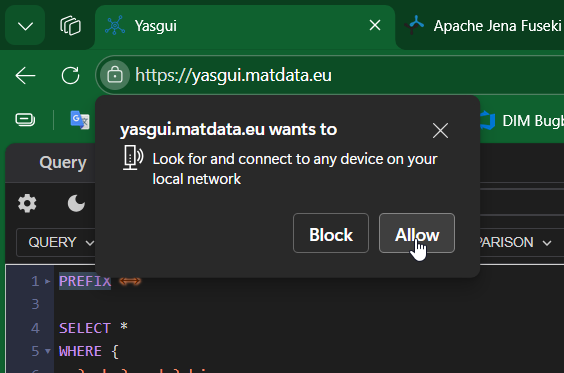
- Click "Allow" to grant permission
- The permission applies for the domain on which you run yasgui (for example https://yasgui.matdata.eu/)
-
If You Blocked the Request: You can change the permission later
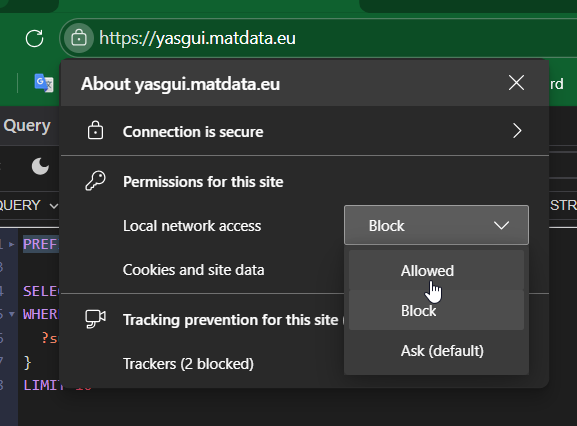
- Click the lock icon in the address bar
- Find the "Local network access" or similar setting
- Change it to "Allow"
- Execute the query again
-
Permission Denied Error: If same-origin policy was not accepted, you'll see an error
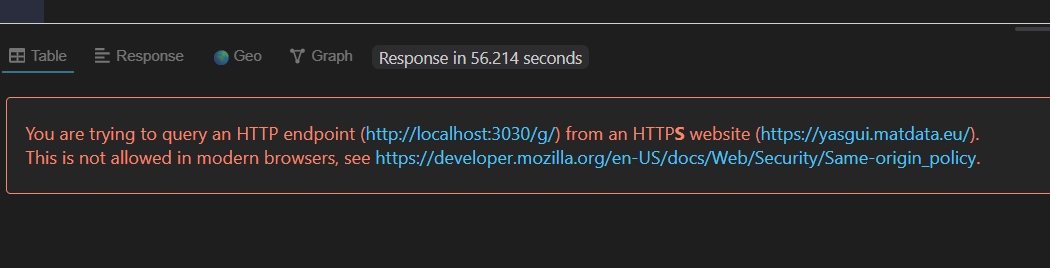
- Follow step 4 to grant permission
- Re-execute your query
Other Browsers:
The process is similar in Chrome, Firefox, and Safari:
- Chrome: the same as Edge (verified by author)
- Firefox: May require setting
security.mixed_content.block_active_contentto false in about:config (unverified by author) - Safari: Check "Disable local file restrictions" in Develop menu (unverified by author)
- Vivaldi: the same as Edge (verified by author)
Alternative: Use Docker to Avoid Permission Issues
If you frequently work with local endpoints, consider running YASGUI locally with Docker:
docker run -p 8080:8080 mathiasvda/yasgui
Then open your browser and navigate to http://localhost:8080.
This eliminates browser permission prompts since both YASGUI and your local endpoint use HTTP. See Running YASGUI with Docker for details.
Important Notes:
- Permission is required because YASGUI is served over HTTPS while your local endpoint uses HTTP
- This is a browser security feature to protect against mixed content attacks
- You'll need to grant permission once and it should apply for all browser session (when you don't clear cache & settings)
- Consider using HTTPS for your local endpoint for automatic permission
Troubleshooting Local Endpoints:
- Ensure your local SPARQL server is running before querying
- Check that the port number is correct (e.g., 3030, 3333, 7200)
- Verify the endpoint path matches your server configuration
- See Troubleshooting - Local Endpoint Issues for more help
Components Overview
YASGUI consists of three main components working together:
YASQE (Query Editor)
The query editor where you write and edit SPARQL queries.
Features:
- Syntax highlighting for SPARQL
- Auto-completion for keywords, prefixes, and URIs
- Line numbers and code folding
- Query validation with error highlighting
- Find and replace functionality
- Multiple editor themes
YASR (Results Viewer)
The results viewer displays query results in various formats.
Features:
- Multiple visualization plugins (table, graph, map, etc.)
- Export results to different formats
- Pagination for large result sets
- Sortable and filterable tables
- Raw response viewer
YASGUI (Main Interface)
The container that brings YASQE and YASR together with additional functionality.
Features:
- Multiple query tabs
- Tab management (rename, duplicate, close)
- Endpoint management
- Settings configuration
- Theme switching
- Layout orientation options
Features
Themes
YASGUI supports both light and dark themes, allowing you to customize the appearance of the SPARQL IDE according to your preferences.
Features:
- Light Theme: Default bright theme suitable for well-lit environments with high contrast and blue accents
- Dark Theme: Easy-on-the-eyes dark theme with Material Palenight syntax highlighting and cyan accents
- Theme Toggle: Quick switching between themes via UI button in the tab bar
- Persistence: Your theme preference is automatically saved in browser storage
- System Preference: Automatically detects and applies your system's theme preference on first visit
How to Change Theme:
- Click the theme toggle button in the top-right area of the tab bar
- Light Mode: Shows a sun icon (☀️) - clicking switches to dark mode
- Dark Mode: Shows a moon icon (🌙) - clicking switches to light mode
- Your theme preference persists across page reloads and browser sessions
Theme Details:
Light Theme characteristics:
- Clean, bright interface with high contrast
- Default CodeMirror syntax highlighting
- White backgrounds with dark text
- Blue accent color (#337ab7)
Dark Theme characteristics:
- Dark backgrounds with light text
- GitHub Dark CodeMirror theme for syntax highlighting (customizable)
- Reduced eye strain in low-light environments
- Cyan accent color (#4fc3f7)
Editor Theme Customization:
You can customize the syntax highlighting theme separately for light and dark modes:
- Click the Settings button (⚙) in the control bar
- Navigate to the "Editor" tab
- Select your preferred theme for light mode from the dropdown
- Select your preferred theme for dark mode from the dropdown
- Click "Save" to apply your changes
Available Themes: YASGUI supports 35+ CodeMirror themes including:
- GitHub Dark: Custom theme matching GitHub's dark default colors
- Material themes (Darker, Palenight, Ocean)
- Dracula
- Monokai
- Solarized (Light/Dark)
- Nord
- Tomorrow Night
- Zenburn
- And many more...
You can preview all available themes at CodeMirror's theme demo page.
Your theme preferences are stored separately for light and dark modes, so switching between app themes (light/dark) will automatically apply the appropriate editor theme.
System Theme Detection:
If you haven't manually selected a theme, YASGUI will:
- Check your system's color scheme preference
- Apply dark theme if your system prefers dark mode
- Apply light theme otherwise
- Automatically update if you change your system preference
Layout Orientation
YASGUI offers two layout options to optimize screen space:
Vertical Layout (Default):
- Query editor on top
- Results viewer below
- Best for standard monitors and laptops
Horizontal Layout:
- Query editor on left
- Results viewer on right (side-by-side)
- Ideal for wide/ultrawide monitors
- Maximizes vertical space for both components
How to Change Layout:
- Click the layout toggle button in the control bar (next to the endpoint selector)
- Icon shows stacked rectangles (vertical) or side-by-side rectangles (horizontal)
- Layout preference is saved automatically
Query Formatting
Keep your SPARQL queries clean and readable with automatic formatting.
Features:
- Format button in the editor toolbar
- Keyboard shortcut:
Shift+Ctrl+F - Choice of formatting engines:
- sparql-formatter (default): Standards-compliant, modern formatter
- Legacy formatter: Original YASGUI formatter
- Auto-format on query execution (configurable in Settings)
How to Format:
- Write or paste your query
- Click the format button or press
Shift+Ctrl+F - Query is automatically reformatted with proper indentation and spacing
Configuration:
- Open Settings (⚙ icon) to:
- Select your preferred formatter
- Enable/disable auto-format on query execution
- Both settings are saved persistently
CONSTRUCT Query Validation
YASGUI helps you write correct CONSTRUCT queries by detecting undefined variables.
Feature:
- Automatically checks if variables used in the CONSTRUCT template are defined in the WHERE clause
- Shows orange warning markers in the gutter for undefined variables
- Displays tooltips explaining which variable is undefined
- Does not prevent query execution (informational only)
How It Works: When you write a CONSTRUCT query, YASGUI analyzes the variables:
PREFIX ex: <http://example.org/>
CONSTRUCT {
  ?s ex:hasName ?name .
  ?s ex:hasAge ?age .      # ⚠️ Warning: ?age not defined in WHERE
}
WHERE {
  ?s ex:name ?name .       # Only ?s and ?name are defined
}
Visual Feedback:
- Orange warning icon: Appears in the gutter next to lines with undefined variables
- Tooltip: Hover over the warning icon to see which variable is undefined
- Non-blocking: Queries can still be executed even with warnings
Configuration:
- Open Settings (⚙ icon) → Editor tab
- Toggle "Validate CONSTRUCT query variables" checkbox
- Enabled by default
- Setting is saved persistently
Why This Helps:
- Catch typos in variable names early
- Ensure CONSTRUCT queries will produce expected results
- Understand which variables are actually bound in your query
- Improve query quality without blocking execution
Code Snippets
Quickly insert common SPARQL patterns and query types using the code snippets bar.
Features:
- Quick insertion: Click a snippet button to insert code at your cursor position
- Default snippets: Includes 5 useful SPARQL snippets (SELECT, CONSTRUCT, ASK, FILTER, OPTIONAL)
- Dropdown grouping: When more than 10 snippets are configured, they are grouped in dropdown menus
- Customizable: Developers can configure custom snippets
- Visibility toggle: Show or hide the snippets bar based on preference
How to Use:
- Position your cursor where you want to insert code
- Click a snippet button in the snippets bar (above the editor)
- The code is inserted at your cursor position
- Continue editing as needed
Default Snippets:
- SELECT: Basic SELECT query template
- CONSTRUCT: CONSTRUCT query template
- ASK: ASK query template
- FILTER: FILTER pattern example
- OPTIONAL: OPTIONAL pattern template
Grouped Snippets (>10): When more than 10 snippets are configured, they are organized into dropdown menus by group:
- Click a group button (e.g., "Query Types", "Patterns") to open the dropdown
- Click a snippet in the dropdown to insert it
- The dropdown closes automatically after insertion
Configuration:
- Snippets bar visibility is saved in user preferences
- Developers can configure custom snippets with label, code, and group properties
- The bar is hidden automatically when no snippets are configured
Fullscreen Mode
Maximize screen space for editing or viewing results.
Available Modes:
- YASQE Fullscreen: Editor takes up the entire screen
- YASR Fullscreen: Results viewer takes up the entire screen
How to Use:
- Press
F11to toggle YASQE fullscreen - Press
F10to toggle YASR fullscreen - Press
F9to switch between YASQE and YASR fullscreen - Press
Escor click the close button to exit fullscreen
Prefix Management
Simplify query writing with reusable prefix declarations.
Features:
- Saved Prefixes: Define commonly-used prefixes once, reuse everywhere
- Auto-capture: YASGUI automatically captures new prefixes from your queries
- PREFIX Button: Insert saved prefixes into your query with one click
- Prefix Autocomplete: Type a prefix (e.g.,
PREFIX foaf:) and YASGUI suggests the full URI from prefix.cc
Default Prefixes: YASGUI includes standard prefixes like:
rdf:- RDF vocabularyrdfs:- RDF Schema
How to Use:
- Click the "PREFIX" button to insert all saved prefixes
- Open Settings (⚙) to manage your prefix collection
- Enable/disable auto-capture in Settings
Auto-completion: When typing a prefix declaration, YASGUI queries prefix.cc to suggest standard URIs:
PREFIX foaf: < # Auto-suggests http://xmlns.com/foaf/0.1/
Endpoint Quick Switch
The endpoint quick switch buttons feature allows you to quickly switch between different SPARQL endpoints with a single click. You can use predefined endpoints or add your own custom buttons.
Features:
- One-click switching: Instantly switch to a different SPARQL endpoint
- Developer-configured buttons: Administrators can configure endpoint buttons during initialization
- User-configurable buttons: Enable/disable developer-configured buttons or add your own
- Persistent storage: Custom buttons and preferences are saved in local storage
- Fully themed: Buttons automatically adapt to light and dark themes
- Accessible: Buttons are fully accessible with ARIA labels
Developer-Configured Endpoint Buttons:
If the developer has configured endpoint buttons when initializing YASGUI, you can manage them through the Settings interface:
- Click the Settings button (⚙) in the control bar
- Navigate to the "Endpoints" tab
- Look for the "Developer-Configured Endpoint Buttons" section at the top
- Toggle the "Enabled" checkbox for each button to show or hide it
This allows you to customize which developer-configured buttons appear in your toolbar without losing the configuration.
How to Add Custom Endpoints:
- Click the Settings button (⚙) in the control bar
- Navigate to the "Endpoints" tab
- Scroll to the "SPARQL Endpoints" section
- Enter an endpoint URL in the "Add New Endpoint" field
- Click "+ Add Endpoint"
- Optionally add a label and enable "Show as Button"
- Changes are saved automatically
Custom endpoint configurations persist across browser sessions. You can delete endpoints by clicking the "Delete" button.
How to Switch Endpoints:
- Buttons are displayed next to the endpoint textbox in the control bar
- Click any endpoint button to immediately update the endpoint field
- The endpoint change triggers the same behavior as manually entering an endpoint
- The new endpoint is used for all subsequent queries
Overflow Dropdown for Limited Space: When the control bar is too narrow to display all endpoint buttons (e.g., when resizing the window or having many endpoints), buttons that don't fit are automatically grouped into an overflow dropdown menu:
- A "more" button (⋯) appears at the end of the visible buttons
- Click the overflow button to reveal a dropdown with the hidden endpoint buttons
- The dropdown automatically adjusts as you resize the window
- All endpoint buttons remain accessible even in constrained spaces
- The overflow button only appears when needed and stays visible as long as there is room for it
Behavior:
- Clicking a button updates the endpoint textbox with the configured endpoint
- The endpoint change is immediate and doesn't require confirmation
- Multiple buttons can be displayed for different endpoints
- Each button shows its label for easy identification
Configuration Import/Export
Backup, share, and migrate your YASGUI configuration using RDF Turtle format. This feature allows you to export all your settings, tabs, queries, and preferences, then import them on another device or browser.
Features:
- Export to file: Download your configuration as a
.ttlfile - Copy to clipboard: Quickly copy configuration for sharing
- Import from file: Upload a previously exported configuration
- Paste from clipboard: Import configuration directly from clipboard
- Drag & drop: Drop a
.ttlfile to import configuration - RDF/Turtle format: Standard, semantic format for configuration data
Configuration Ontology:
YASGUI uses a custom RDF ontology to represent configuration:
- Namespace:
https://yasgui.matdata.eu/ontology# - Classes:
Configuration,Tab - Properties:
activeTab,prefixes,endpoint,query,tabName, etc.
What Gets Exported:
- All query tabs and their content
- Endpoint configurations
- Saved prefixes
- Custom endpoint buttons
- Auto-capture settings
- Editor preferences
How to Export Configuration:
- Click the Settings button (⚙) in the control bar
- Navigate to the "Import/Export" tab
- Choose export method:
- 📋 Copy to Clipboard: Copies configuration as RDF Turtle text
- 💾 Download as File: Downloads as
yasgui-config.ttl
- Share the file or clipboard content with others, or save it for backup
How to Import Configuration:
- Click the Settings button (⚙) in the control bar
- Navigate to the "Import/Export" tab
- Choose import method:
- Drag & drop: Drag a
.ttlfile onto the drop zone - 📂 Browse Files: Click to select a file from your computer
- 📋 Paste from Clipboard: Import directly from clipboard
- Drag & drop: Drag a
- Confirm the import when prompted
- Reload the page to see the imported configuration
Example Configuration (RDF Turtle):
@prefix yasgui: <https://yasgui.matdata.eu/ontology#> .
@prefix xsd: <http://www.w3.org/2001/XMLSchema#> .

[] a yasgui:Configuration ;
  yasgui:activeTab "tab1" ;
  yasgui:prefixes """PREFIX rdf: <http://www.w3.org/1999/02/22-rdf-syntax-ns#>
PREFIX rdfs: <http://www.w3.org/2000/01/rdf-schema#>""" ;
  yasgui:autoCaptureEnabled "true"^^xsd:boolean ;
  yasgui:tab [
    yasgui:tabId "tab1" ;
    yasgui:tabName "My Query" ;
    yasgui:query "SELECT * WHERE { ?s ?p ?o } LIMIT 10" ;
    yasgui:endpoint "https://dbpedia.org/sparql" ;
    yasgui:requestMethod "POST"
  ] .
Use Cases:
- Backup: Export configuration before clearing browser data
- Migration: Move your setup to a different browser or device
- Sharing: Share query collections with colleagues
- Version Control: Track configuration changes over time
- Collaboration: Distribute standardized query setups to teams
Important Notes:
- Import will replace your current configuration (confirm before proceeding)
- Page reload is required to fully apply imported configuration
- Configuration is stored in browser's local storage
- Export includes all tabs and queries, but not query execution results
URI Explorer
Quickly explore RDF resources by Ctrl+clicking on URIs in your query.
How It Works:
- Hold
Ctrland click any URI in the query editor - YASGUI automatically generates and executes a CONSTRUCT query exploring:
- Outgoing triples (where the URI is the subject)
- Incoming triples (where the URI is the object)
- Results appear without modifying your original query
- View the resource's connections in the results viewer
Example:
Ctrl+clicking on http://dbpedia.org/resource/European_Union automatically queries for all triples related to the European Union.
Query Tabs
Manage multiple queries simultaneously with tabs.
Features:
- Create unlimited query tabs
- Rename tabs by double-clicking the tab name
- Duplicate tabs to create query variations
- Reorder tabs by dragging
- Close individual tabs
- Each tab maintains its own:
- Query content
- Endpoint configuration
- Results
- Plugin selection
Tab Operations:
- New Tab: Click the "+" button in the tab bar
- Rename: Double-click the tab name
- Duplicate: Right-click and select "Duplicate"
- Close: Click the "×" on the tab or use the context menu
- Reorder: Drag and drop tabs to rearrange
Settings Modal
Access comprehensive configuration options through the Settings modal.
How to Open:
- Click the settings button (⚙) in the control bar
Settings Sections:
Prefixes Tab:
- Manage saved prefix declarations
- Enable/disable auto-capture
- Add, edit, or remove prefixes
Request Configuration Tab:
- HTTP request method (GET/POST)
- Accept headers
- Custom request parameters
- Named/default graphs configuration
- Custom HTTP headers
Endpoints Tab:
- Developer-Configured Endpoint Buttons: Enable/disable developer-configured buttons
- SPARQL Endpoints: Manage all your endpoints in one place
- Configure authentication per endpoint
- Add labels and create quick-switch buttons
- Automatically tracks accessed endpoints
Formatting Tab:
- Select formatter (sparql-formatter or legacy)
- Enable/disable auto-format on query execution
Editor Tab:
- Select CodeMirror theme for light mode
- Select CodeMirror theme for dark mode
- Test themes at CodeMirror Theme Demo
- Includes custom "GitHub Dark" theme matching GitHub's dark default colors
All settings are saved automatically to local storage.
SPARQL Endpoints Management
YASGUI automatically tracks all SPARQL endpoints you access and lets you manage them from a single location.
Accessing the Endpoints Manager:
- Open Settings: Click the settings icon (⚙️) in the control bar
- Navigate to Endpoints: Click on the "Endpoints" tab in the settings modal
Developer-Configured Endpoint Buttons:
If the developer has configured endpoint buttons during initialization, you'll see them in the "Developer-Configured Endpoint Buttons" section:
- Label: The display name for the button
- Endpoint: The SPARQL endpoint URL
- Enabled: Toggle to show/hide the button in the toolbar
You can enable or disable any developer-configured button by checking or unchecking the "Enabled" checkbox. Your preferences are saved locally and persist across sessions.
Managing User Endpoints:
The SPARQL Endpoints table shows:
- Endpoint: The URL of the SPARQL endpoint
- Label: Optional friendly name for the endpoint
- Button: Checkbox to show endpoint as a quick-switch button (requires label)
- Authentication: Configure authentication (Basic, Bearer, API Key, OAuth2)
- Actions: Delete endpoint from the list
Adding Quick-Switch Buttons:
- Find your endpoint in the list (or add a new one)
- Enter a label (e.g., "DBpedia", "Wikidata")
- Check the "Button" checkbox
- The endpoint will now appear as a button in the control bar
Configuring Authentication:
YASGUI supports multiple authentication methods for endpoints that require credentials.
- Find your endpoint in the SPARQL Endpoints table
- Click "Configure" in the Authentication column
- Select authentication type:
- HTTP Basic Authentication: Username and password
- Bearer Token: Pre-configured access token
- API Key: Custom header with API key
- OAuth 2.0: Industry-standard OAuth 2.0 authorization
- Enter credentials based on your selected type (see below)
- Click "Save" (or "Save & Authenticate" for OAuth 2.0) to apply
Authentication Types:
HTTP Basic Authentication:
- Username: Your endpoint username
- Password: Your endpoint password
- Use case: Simple username/password authentication
Bearer Token:
- Token: Your pre-configured bearer token
- Use case: When you have a pre-generated access token
API Key (Custom Header):
- Header Name: The HTTP header name (e.g., X-API-Key)
- API Key: Your API key value
- Use case: Endpoints using custom header-based authentication
OAuth 2.0:
- Client ID: Your OAuth application's client ID
- Authorization Endpoint: The OAuth provider's authorization URL
- Token Endpoint: The OAuth provider's token exchange URL
- Redirect URI: Callback URL (optional, defaults to current page)
- Scope: Space-separated OAuth scopes (optional)
- Use case: Secure, industry-standard authorization with automatic token refresh
- Process: Click "Save & Authenticate" to open OAuth login window
- ⚠️ Important: The redirect URI must be registered with your OAuth provider by the OAuth administrator before authentication will work
⚠️ Important Security Notes:
- Credentials are stored in browser localStorage: Your authentication credentials are stored locally in your browser
- Only use with HTTPS endpoints: Never send credentials to HTTP endpoints as they will be transmitted in plain text
- Be cautious on shared computers: Clear your browser data when using YASGUI on shared or public computers
- OAuth 2.0 tokens: Access tokens are automatically refreshed when expired (if refresh token is available)
- Token security: OAuth 2.0 uses secure PKCE flow (Proof Key for Code Exchange) for enhanced security
How Authentication Works:
Authentication is stored per-endpoint, which means:
- All tabs using the same endpoint share the same credentials
- You only need to configure authentication once per endpoint
- Credentials persist across browser sessions (stored in localStorage)
When authentication is configured:
For Basic Authentication:
- YASGUI encodes your credentials using Base64 encoding
- Adds an
Authorizationheader with the format:Basic <encoded-credentials> - Sends this header with every SPARQL query request to that endpoint
For Bearer Token:
- Uses the provided token as-is
- Adds an
Authorizationheader with the format:Bearer <token> - Sends this header with every SPARQL query request to that endpoint
For API Key:
- Uses the specified custom header name and API key value
- Adds a custom header with the format:
<Header-Name>: <api-key> - Sends this header with every SPARQL query request to that endpoint
For OAuth 2.0:
- Opens a popup window for OAuth provider authentication
- Uses Authorization Code flow with PKCE for secure token exchange
- Stores access token and refresh token
- Automatically checks token expiration before each query
- Automatically refreshes expired tokens using refresh token (if available)
- Adds an
Authorizationheader with the format:Bearer <access-token> - If token refresh fails, prompts user to re-authenticate
OAuth 2.0 Provider Examples:
⚠️ Important Prerequisite:
Before using OAuth 2.0, the OAuth administrator must register the redirect URI (callback URL) in the OAuth provider's configuration. By default, YASGUI uses the current page URL as the redirect URI. For example, if YASGUI is hosted at https://yasgui.example.com/, this URL must be added to the allowed redirect URIs in your OAuth application settings.
Microsoft Azure (Entra ID):
- Authorization Endpoint:
https://login.microsoftonline.com/{tenant-id}/oauth2/v2.0/authorize - Token Endpoint:
https://login.microsoftonline.com/{tenant-id}/oauth2/v2.0/token - Scope:
api://your-app-id/.defaultoropenid profile - Note: Your app must be registered in Azure AD with public client flow enabled
- Redirect URI Registration: Add your YASGUI URL to "Redirect URIs" in Azure AD app registration
AWS Cognito:
- Authorization Endpoint:
https://your-domain.auth.region.amazoncognito.com/oauth2/authorize - Token Endpoint:
https://your-domain.auth.region.amazoncognito.com/oauth2/token - Scope:
openid profile(adjust as needed) - Note: Enable "Authorization code grant" flow in your app client settings
- Redirect URI Registration: Add your YASGUI URL to "Allowed callback URLs" in Cognito app client settings
Keycloak:
- Authorization Endpoint:
https://your-keycloak-domain.com/realms/{realm-name}/protocol/openid-connect/auth - Token Endpoint:
https://your-keycloak-domain.com/realms/{realm-name}/protocol/openid-connect/token - Scope:
openid profile(adjust based on client configuration) - Note: Client should have "Standard Flow" enabled and "Access Type" set to "public"
- Redirect URI Registration: Add your YASGUI URL to "Valid Redirect URIs" in Keycloak client configuration
Managed Queries and Workspaces
YASGUI can be configured with managed queries and workspaces, which provide a shared, versioned store for SPARQL queries (for example in Git or in an RDF store). A managed query is a saved query stored in a workspace. A workspace can be linked to a Git repository or SPARQL endpoint, is set up by the user, and is required before queries can be saved.
Purpose and Use Cases:
This feature is designed for power users who want to:
- Save and organize their favorite queries with versioning
- Collaborate on queries with team members through Git or shared RDF stores
- Maintain project-specific query collections
- Have persistent, reliable query storage beyond browser tabs
Not for new user onboarding: This is not primarily intended as a way to distribute sample queries to help new users get started with an endpoint. If you need to provide example queries for onboarding, consider:
- Using the developer configuration to embed queries in your YASGUI instance
- Using the snippets functionality for quick templates
- Implementing a custom wrapper that loads example queries programmatically
Workspaces
Configure workspaces:
- Open Settings (⚙) for a tab
- Go to the Workspaces tab
- Add one or more workspaces (Git or SPARQL) and choose a Default workspace
- (Optional) Click Validate access to test the configuration and show how many managed queries are already saved in that workspace
Note: the recommended type of workspace is SPARQL. It is more feature rich (allows to save endpoints and descriptions) and is much faster. The Git based workspace uses HTTP calls to the Git provider API, several calls are required to read/write queries, which makes it slower.
SPARQL workspaces
Configuration fields:
- SPARQL endpoint: which endpoint to use for reading/writing the workspace data. This is selected from your configured endpoints (including any auth headers you set up for that endpoint).
- Workspace IRI: the IRI that identifies the workspace in the RDF store (the
yasgui:Workspace/ SKOS concept scheme).- After selecting an endpoint, YASGUI automatically queries the endpoint to discover existing workspaces. Any workspaces found will appear in a dropdown menu for easy selection.
- You can select an existing workspace from the dropdown to reuse already-stored managed queries and collaborate with others using the same workspace.
- Or choose "➕ Enter new workspace IRI" from the dropdown to create a fresh workspace. This reveals a text field where you can enter a custom IRI for your new workspace.
- If the query for existing workspaces fails (e.g., due to permissions), the dropdown will show "Failed to load workspaces" and you can still enter a new workspace IRI manually.
- Default graph (optional): the named graph to read/write workspace data in (sent as
default-graph-uri). Leave empty to use the store’s default dataset behavior.
URI minting strategy:
In SPARQL-based workspaces, YASGUI assigns immutable identifiers (URIs) to managed queries and their versions. This is important because users can rename queries (and query names can change over time), but the identity of a managed query should remain stable.
- Managed query URI:
<workspaceIri>_mq_<uuid> - Managed query version URI:
<workspaceIri>_mq_v_<uuid>
Notes:
- The base is always the workspace URI (
workspaceIri), followed by_mq_or_mq_v_, then a UUID. - The URI does not include the query name
- Renaming a query changes its
rdfs:label, not its URI. - Versions are immutable snapshots linked via
dcterms:isVersionOf.
Vocabulary and Ontology: SPARQL workspaces use RDF vocabularies including SPIN/SP (for representing SPARQL queries), DCTERMS (for versioning via dcterms:isVersionOf), RDFS (for labels and descriptions), SKOS (for workspace organization), and custom YASGUI predicates for workspace-specific metadata. For implementation details and example data, see the example workspace data in Turtle format and the full specification. To see how the data is structured in practice, save a few queries with versions in a SPARQL workspace, then query the endpoint to examine the RDF triples.
Example Workspace Data:
Here's an example showing how a managed query with multiple versions is stored in RDF:
PREFIX dcterms:  <http://purl.org/dc/terms/>
PREFIX prov:     <http://www.w3.org/ns/prov#>
PREFIX rdf:      <http://www.w3.org/1999/02/22-rdf-syntax-ns#>
PREFIX rdfs:     <http://www.w3.org/2000/01/rdf-schema#>
PREFIX sp:       <http://spinrdf.org/sp#>
PREFIX spin:     <http://spinrdf.org/spin#>
PREFIX ssd:      <http://www.w3.org/ns/sparql-service-description#>
PREFIX xsd:      <http://www.w3.org/2001/XMLSchema#>
PREFIX yasgui:   <https://matdata.eu/ns/yasgui#>
PREFIX yasgui-d: <http://matdata.eu/d/yasgui/>

# Workspace definition
yasgui-d:ws1  rdf:type  yasgui:Workspace .

# Managed query (with stable identifier)
yasgui-d:ws1_mq_aaf6a7e1-6dfa-4d06-89c4-7fbd8de475c4
        rdf:type          yasgui:ManagedQuery;
        rdfs:label        "DemoQuery";
        dcterms:isPartOf  yasgui-d:ws1 .

# Version 1 (original version with endpoint and description)
yasgui-d:ws1_mq_v_1e1c4bec-0d79-474a-a930-6f38ec8f90b5
        rdf:type             yasgui:ManagedQueryVersion;
        dcterms:created      "2026-01-06T21:31:33.736Z"^^xsd:dateTime;
        dcterms:description  "This is a demo query to use as example in the user documentation of Yasgui";
        dcterms:isVersionOf  yasgui-d:ws1_mq_aaf6a7e1-6dfa-4d06-89c4-7fbd8de475c4;
        spin:text            "PREFIX rdf: <http://www.w3.org/1999/02/22-rdf-syntax-ns#>\nPREFIX rdfs: <http://www.w3.org/2000/01/rdf-schema#>\nSELECT * WHERE {\n  ?sub ?pred ?obj .\n} LIMIT 10";
        prov:used            [ rdf:type      ssd:Service;
                               ssd:endpoint  <https://graph.data.era.europa.eu/repositories/rinf-plus>
                             ] .

# Version 2 (updated query text)
yasgui-d:ws1_mq_v_a7aa79b3-f6b9-441b-a33c-c4a7569b2d89
        rdf:type             yasgui:ManagedQueryVersion;
        dcterms:created      "2026-01-06T21:31:52.422Z"^^xsd:dateTime;
        dcterms:isVersionOf  yasgui-d:ws1_mq_aaf6a7e1-6dfa-4d06-89c4-7fbd8de475c4;
        spin:text            "PREFIX rdf: <http://www.w3.org/1999/02/22-rdf-syntax-ns#>\nPREFIX rdfs: <http://www.w3.org/2000/01/rdf-schema#>\nSELECT * WHERE {\n  # New version\n  ?s ?p ?o .\n} LIMIT 10" .

# Version 3 (latest version with formatting changes)
yasgui-d:ws1_mq_v_21c919b1-cc80-4dea-a94f-9ab1cb8b7df5
        rdf:type             yasgui:ManagedQueryVersion;
        dcterms:created      "2026-01-06T21:32:19.959Z"^^xsd:dateTime;
        dcterms:isVersionOf  yasgui-d:ws1_mq_aaf6a7e1-6dfa-4d06-89c4-7fbd8de475c4;
        spin:text            "PREFIX rdf: <http://www.w3.org/1999/02/22-rdf-syntax-ns#>\nPREFIX rdfs: <http://www.w3.org/2000/01/rdf-schema#>\n\nSELECT *\nWHERE {\n  # New version\n  ?s ?p ?o .\n}\nLIMIT 10" .

# Endpoint reference (can be shared across queries)
[ rdf:type      ssd:Service;
  ssd:endpoint  <https://dbpedia.org/sparql>
] .
This example shows:
- A workspace (
yasgui-d:ws1) - A managed query with a stable URI and human-readable label ("DemoQuery")
- Three versions of that query, each with:
- Creation timestamp
- Link back to the parent query via
dcterms:isVersionOf - Query text stored in
spin:text - Optional endpoint reference (version 1) via
prov:used - Optional description (version 1)
Authentication Requirements: SPARQL workspaces require appropriate permissions on the endpoint. Read access is required to browse and open queries, while write access is required to save, update, or delete queries. Configure authentication for the endpoint in the Endpoints tab before setting up the workspace. If saving fails silently, check that your endpoint credentials have write permissions.
Tip: local Apache Jena/Fuseki endpoint (Docker)
If you want a quick local SPARQL endpoint to test with, you can run a Fuseki server with GeoSPARQL support:
docker run -p 3030:3030 mathiasvda/apache-jena-fuseki-geosparql
Then configure YASGUI to use the endpoint URL:
http://localhost:3030/ds/
Limitations / notes:
- If the SPARQL endpoint is blocked by browser CORS policies, the workspace may not work without a proxy.
Git based workspaces
Supported providers:
- GitHub (including GitHub Enterprise)
- GitLab (GitLab.com and self-hosted)
- Bitbucket Cloud
- Gitea (self-hosted)
Currently GitHub and GitLab have been thoroughly tested; Bitbucket Cloud and Gitea support covers the same as GitHub/GitLab but have not been extensively tested.
Git workspaces are implemented via the providers' HTTPS REST APIs.
- The
remoteUrlcan behttps://...,ssh://..., or SCP-style (e.g.git@host:org/repo.git). - Important: SSH/SCP-like remotes are only parsed to identify
host+owner/repo. YASGUI does not implement Git-over-SSH; all reads/writes still happen through the provider's HTTPS API.
Configuration fields:
- Remote URL: repository URL (see formats above)
- Token: stored locally and never re-displayed after entry
- Advanced (optional):
- Provider: force a specific provider client (otherwise auto-detect)
- API base URL: for enterprise/self-hosted instances (e.g., GitHub Enterprise
.../api/v3, GitLab.../api/v4, Gitea.../api/v1) - Branch: optional; if left empty, the provider default branch is used when possible
- Root path: optional subfolder within the repo
- Username: optional; required by Bitbucket Cloud when using an app password
GitHub Personal Access Token Setup:
To use a GitHub repository as a workspace, you need to create a Personal Access Token with appropriate permissions.
Create a GitHub Personal Access Token →
Required permissions:
For Classic Personal Access Token:
public_repo- For public repositories onlyrepo(full scope) - For private repositories or full access
For Fine-grained Personal Access Token:
Select these Repository permissions:
- Contents: Read and write (required for reading/writing
.rqand.sparqlfiles) - Metadata: Read (required for repository access validation)
The token must have access to the specific repository you're configuring as a workspace.
What the token is used for:
- Reading repository structure and query files (
.rq,.sparql) - Creating and updating query files
- Deleting query files
- Reading commit history for versioning
- Validating repository access
Limitations / notes:
- If the provider API is blocked by browser CORS policies, a Git workspace may not work without a proxy.
- Git workspaces store only query text files (
.rqor.sparql); they do not store endpoint associations, so opening a Git-managed query will not auto-switch endpoints. - File format: Queries are stored as plain text files containing only the SPARQL query text. Files with
.rqextension (W3C recommended) or.sparqlextension are recognized and displayed in the query browser. - The repository can contain other files; only
.rqand.sparqlfiles will be shown in the query browser. - Authentication/permission errors may not always display clear error messages - check browser console if saves fail silently.
Managed queries
Browse and open managed queries:
- Open the Query Browser from the per-tab control bar
- Navigate folders and select a query to open it in a new tab
- SPARQL based workspace only: the endpoint is automatically switched to the one saved with the managed query
Save as managed query:
- Use the tab context menu action Save as managed query
- Saving the same query text does not create a new version; changing text creates a new version
Copy URI of a managed query:
- In the Query Browser: use the Copy URI action button next to any query to copy its URI to the clipboard
- In the tab context menu (right-click a tab): use Copy URI when the tab is linked to a managed query
- For SPARQL workspaces the URI is the managed-query IRI stored in the triplestore
- For Git workspaces the URI is the browser-accessible link to the file in the repository (GitHub/GitLab/Bitbucket/Gitea)
View version history of a managed query:
- In the Query Browser: right-click any query and choose History
- A dialog opens listing all saved versions of that query (newest first), each showing its date, author, and save message
- Click a version in the list to preview its SPARQL text on the right side of the dialog
- Click Open in tab to open the selected historical version in a new tab linked to the managed query; from there you can edit and re-save it to create a new version
Credentials:
- Tokens are stored locally, not saved together with the managed query and are not re-displayed after entry
Query History and Persistence
YASGUI automatically saves your work locally.
What's Saved:
- Query text in each tab
- Tab names and order
- Endpoint configurations
- Last query results
- User preferences (theme, layout, etc.)
- Custom endpoint buttons
Persistence Duration:
- Default: 30 days
- Configurable by administrators
Note: Data is stored in your browser's local storage. Clearing browser data will remove saved queries.
Share Queries
Share your queries with colleagues using multiple formats including URL parameters, cURL, PowerShell, and wget commands.
Share Button:
YASQE provides a share button (when createShareableLink is configured) that offers multiple sharing options:
- Copy URL - Copies the shareable URL to your clipboard
- Shorten URL - Creates a shortened URL (if URL shortener is configured)
- Copy cURL - Generates and copies a cURL command for command-line execution
- Copy PowerShell - Generates and copies a PowerShell command using
Invoke-WebRequest - Copy wget - Generates and copies a wget command
How to Share:
YASGUI supports URL-based query sharing:
- Craft your query in YASGUI
- Click the share button (sharing icon in the top-right corner)
- Select your preferred format
- The content is automatically copied to your clipboard
- Share with others or execute in your terminal
URL Parameters:
query: The SPARQL queryendpoint: The endpoint URL- Other tab configurations
Command-Line Formats:
All command-line formats (cURL, PowerShell, wget) include:
- The complete SPARQL query
- All configured headers
- Authentication credentials (if configured)
- Proper HTTP method (GET or POST)
⚠️ Security Notice: When copying commands with authentication credentials, a warning notification will appear. Be cautious about sharing these commands as they contain sensitive authentication information.
Example Formats:
cURL:
curl 'https://example.com/sparql' \
  --data 'query=SELECT%20...' \
  -X POST \
  -H 'Authorization: Bearer token' \
  -H 'Accept: application/sparql-results+json'
PowerShell:
$params = @{
    Uri = "https://example.com/sparql"
    Method = "Post"
    Headers = @{
        "Accept" = "application/sparql-results+json"
        "Authorization" = "Bearer token"
    }
    ContentType = "application/x-www-form-urlencoded"
    Body = "query=SELECT%20..."
    OutFile = "result.json"
}

Invoke-WebRequest @params
wget:
wget 'https://example.com/sparql' \
  --body-data 'query=SELECT%20...' \
  --method POST \
  --header 'Authorization: Bearer token' \
  --header 'Accept: application/sparql-results+json' \
  -O -
Plugins
YASR (Results Viewer) uses plugins to visualize query results in different formats. The appropriate plugin is automatically selected based on your query type and results.
Table Plugin
Displays SELECT query results in an interactive, high-performance table with advanced features.
Features:
- Virtual Scrolling: Efficiently handles 10,000+ rows without pagination
- Sortable Columns: Click column headers to sort ascending/descending
- Column Resizing: Drag column borders to resize
- Real-time Search: Filter rows by text with highlighting
- Cell Selection: Select individual cells or ranges with Shift+Click, copy with Ctrl+C
- Cell Formatting: URIs, literals, blank nodes, and datatypes properly rendered
- Tooltips: Hover over any cell to view full content
- Copy to Clipboard: Export as Markdown, CSV, or TSV (tab-delimited) with visual notifications
- CSV Download: Integrated with YASR's download interface
- Dynamic Theming: Automatically adapts to YASGUI light/dark theme changes
- Customizable Display:
- URI Display: Toggle between full URIs and prefixed abbreviations (e.g.,
foaf:name) - Datatypes: Show/hide datatype annotations on literals (e.g.,
"42"^^xsd:integer) - Ellipsis Mode: Truncate long cell content with "..." (hover for tooltip or click for modal)
- Fit Controls: Fit table to data width or window width
- URI Display: Toggle between full URIs and prefixed abbreviations (e.g.,
Controls:
- Search: Text field to filter rows in real-time with highlighted matches
- URI Display: Toggle between abbreviated (prefix:localName) and full URI display
- Datatypes: Toggle visibility of datatype annotations on literal values
- Ellipsis: Toggle content truncation for long values (hover shows tooltip)
- Fit to Data: Resize columns to show all content without truncation
- Fit to Window: Resize columns proportionally to fill viewport width
- Copy as Markdown: Copy entire table in Markdown format with visual confirmation
- Copy as CSV: Copy entire table as comma-separated values with visual confirmation
- Copy as TSV: Copy entire table as tab-delimited values with visual confirmation
- Download CSV: Access via YASR's download button for CSV file export
Best For:
- SELECT queries with large result sets (10,000+ rows)
- Exploring structured data with complex URIs
- Interactive data analysis with sorting and filtering
- Sharing results in documentation (Markdown/CSV/TSV)
- Extracting specific data subsets via cell selection
Usage:
- Execute a SELECT query
- Table plugin activates automatically for SELECT results
- Click column headers to sort (click again to reverse)
- Type in search box to filter rows (highlights matches)
- Hover over cells to see full content in tooltip
- Click and drag to select cell ranges, then Ctrl+C to copy
- Use copy buttons to export entire table in different formats
- Use fit controls to optimize column widths
- Toggle URI/datatype/ellipsis controls to customize view
- Use YASR's download button for CSV file export
- Preferences (column widths, sort state, display options) are saved to localStorage
More Information: Visit the Table Plugin Repository for detailed documentation.
Boolean Plugin
Displays boolean results from ASK queries.
Features:
- Clear true/false visual indicator
- Color-coded responses (green for true, red for false)
- Large, easy-to-read display
Best For:
- ASK queries
- Checking if patterns exist in the data
- Boolean validation queries
Usage:
- Execute an ASK query
- Boolean plugin activates automatically
- Result shown as TRUE ✓ or FALSE ✗
Response Plugin
Shows the raw response from the SPARQL endpoint.
Features:
- Syntax highlighting for different formats:
- JSON
- XML
- Turtle
- Other RDF serializations
- Code folding for nested structures
- Copy to clipboard functionality
- Line numbers
Best For:
- Debugging queries
- Inspecting raw endpoint responses
- Understanding response structure
- Working with specific response formats
Usage:
- Execute any query
- Select "Response" from the plugin selector
- View raw response with syntax highlighting
Graph Plugin
Visualizes RDF data as an interactive node-edge graph with advanced customization options.
Features:
- 🔷 Interactive Force-Directed Layout: Automatic physics-based positioning with smooth animations
- � Node Expansion: Double-click any URI node to fetch and merge related triples via DESCRIBE queries
- 🎨 Smart Color Coding:
- 🔵 Light Blue (#97C2FC) = URIs
- 🟢 Light Green (#a6c8a6ff) = Literals
- ⚪ Light Grey (#c5c5c5ff) = Blank nodes
- 🟠 Orange (#e15b13ff) = rdf:type objects (classes)
- 🖼️ Node Icons & Images: Display images or emoji icons on nodes via
schema:imageorschema:iconproperties - 📦 Compact Mode: Hide literal and class nodes; show rdf:type and datatype properties in enhanced tooltips instead
- 🔍 Advanced Navigation:
- Mouse wheel zoom
- Drag to pan
- "Zoom to Fit" button to center the entire graph
- ✋ Drag & Drop: Reorganize nodes by dragging (nodes stay pinned after manual drag)
- 💬 Rich HTML Tooltips: Display node type, value, namespace, and datatype information on hover
- 🌓 Theme Support: Automatic light/dark mode detection with dynamic color switching
- ♿ Accessibility: WCAG AA color contrast, keyboard navigation support
Best For:
- CONSTRUCT queries returning RDF triples
- DESCRIBE queries exploring resource relationships
- Exploring RDF structure and relationships
- Visualizing knowledge graphs
- Understanding complex ontologies
Basic Usage:
- Execute a CONSTRUCT or DESCRIBE query
- Select "Graph" from the plugin selector
- Navigate:
- Zoom: Mouse wheel (scroll up = zoom in, scroll down = zoom out)
- Pan: Click and drag the background
- Fit to View: Click the "Zoom to Fit" button
- Interact:
- Drag Nodes: Click and drag any node to reposition it
- Tooltips: Hover over nodes/edges to see detailed information
Configuration Settings:
Click the ⚙ Settings button to access these options:
| Setting | Options | Default | Description |
|---|---|---|---|
| Compact mode | on / off | off | Hide literal and class nodes; show in tooltips instead |
| Arrow style | Curved / Straight | Curved | Edge appearance between nodes |
| Predicate display | Label / Icon / Hidden | Icon | Show full URI, compact symbol, or nothing on edges |
| Show literals | on / off | on | Include/exclude literal value nodes |
| Show classes | on / off | on | Include/exclude rdf:type object nodes |
| Show blank nodes | on / off | on | Include/exclude blank nodes |
| Show node labels | on / off | on | Display labels inside nodes |
| Enable physics | on / off | on | Keep force-directed layout simulation running |
| Node size | Small / Medium / Large | Medium | Set the radius of all nodes |
Predicate Icons:
When Predicate display is set to Icon, edges show compact symbols for common predicates:
- RDF/RDFS:
a(rdf:type),lbl(rdfs:label),cmt(rdfs:comment),⊂(rdfs:subClassOf),⊆(rdfs:subPropertyOf) - OWL:
≡(owl:sameAs),≅(owl:equivalentClass),⇄(owl:inverseOf),≠(owl:disjointWith) - SKOS:
★(skos:prefLabel),☆(skos:altLabel),↑(skos:broader),↓(skos:narrower),↔(skos:related) - Dublin Core:
ttl(dcterms:title),dsc(dcterms:description),crt(dcterms:created),by(dcterms:creator) - FOAF/Schema.org:
nm(name),⟷(foaf:knows), and more
Node Icons and Images:
Display custom icons or images on nodes using:
schema:image(https://schema.org/image): URL to image (renders as circular image)schema:icon(https://schema.org/icon): Emoji or short string (displays as node label)
Example:
CONSTRUCT {
  ex:alice schema:image <https://example.com/alice.png> .
  ex:alice ex:knows ex:bob .
  ex:Person schema:icon "👤" .
  ex:alice rdf:type ex:Person .
}
WHERE {}
In compact mode, ex:alice will inherit the 👤 emoji from the ex:Person class.
Understanding Colors:
| Color | Meaning | Example |
|---|---|---|
| 🔵 Light Blue | URI nodes | ex:Person, ex:Alice |
| 🟢 Light Green | Literal values | "Alice", "30"^^xsd:integer |
| ⚪ Light Grey | Blank nodes | _:b1, _:addr1 |
| 🟠 Orange | rdf:type objects (classes) | ex:Person in ex:Alice rdf:type ex:Person |
Double click expansion:
The graph plugin supports interactive node expansion via double-clicking. This allows you to progressively explore RDF graphs by fetching additional triples for any URI node without redrawing the entire graph.
How It Works:
- Double-click a blue URI node in the graph
- The node's border turns orange and thickens (loading state)
- A
DESCRIBE <uri>query is sent to the SPARQL endpoint - New triples are merged into the existing graph
- Node's border returns to normal width with thicker border (3px) to indicate expansion
- Graph layout and zoom level are preserved
Performance:
- Good performance: 500-1,000 nodes
- For large graphs: Consider using LIMIT in your SPARQL query
Persistence:
All settings are automatically saved to localStorage and persist across browser sessions.
More Information:
Visit the Graph Plugin Repository for detailed documentation, examples, and troubleshooting.
Geo Plugin
Displays geographic SPARQL results on an interactive Leaflet map. It supports a wide range of geometry formats and coordinate systems, and includes tools for styling, filtering, exploring, and exporting spatial data.
Best For:
- Queries returning WKT geometries (
geo:wktLiteral) - Queries returning GeoJSON, GML, or GeoHash literals
- Queries with
?lat/?lonnumeric columns (auto-detected, no WKT needed) - Visualizing geographic distributions, routes, and regions
- Spatial exploration with drawing-based SPARQL filter generation
- Animated playback of time-stamped geographic data
Supported Data Formats:
The plugin automatically recognizes result columns whose values use any of these datatypes:
| Format | Datatype |
|---|---|
| WKT | geo:wktLiteral, virtrdf:Geometry, wgs84:geometry |
| GeoJSON | geo:geoJSONLiteral |
| GML | geo:gmlLiteral |
| GeoHash | geo:geoHashLiteral |
When your query returns ?lat and ?lon (or ?latitude/?longitude) as numeric values, the plugin synthesizes a point geometry automatically — no WKT column required.
All WKT geometry types are supported: POINT, LINESTRING, POLYGON, MULTIPOINT, MULTILINESTRING, MULTIPOLYGON, and GEOMETRYCOLLECTION.
Getting Started:
- Execute a query that returns geometry bindings or
?lat/?loncolumns. - The Geo plugin tab appears automatically when geographic data is detected.
- Click the Geo tab to switch to the map view.
- The map auto-fits to the extent of the returned features.
Minimal example — lat/lon columns:
SELECT ?name ?lat ?lon WHERE {
  ?city a <http://dbpedia.org/ontology/City> ;
        rdfs:label   ?name ;
        geo:lat      ?lat ;
        geo:long     ?lon .
  FILTER(LANG(?name) = 'en')
} LIMIT 100
Minimal example — WKT geometry:
PREFIX geo: <http://www.opengis.net/ont/geosparql#>

SELECT ?feature ?wkt WHERE {
  ?feature geo:hasGeometry/geo:asWKT ?wkt .
} LIMIT 500
Map Controls:
The map toolbar includes several controls:
| Control | Location | Description |
|---|---|---|
| Zoom in / out | Top-left | Standard Leaflet zoom buttons. |
| Layers | Top-right | Toggle basemaps and switch geometry column overlays on/off. |
| Style | Top-right | Set default color, opacity, fill, stroke width, and marker radius. |
| Simplify | Top-right | Live tolerance slider to reduce geometry complexity. |
| Drawing | Top-left | Draw a rectangle or polygon to generate a spatial SPARQL filter. |
| Export | Top-right | Download or copy results in multiple formats. |
| Coordinate readout | Bottom | Shows the cursor's lat/lon position. |
| Attribution | Bottom-right | Basemap attribution. |
Popups:
Click any feature on the map to open an information popup. The popup shows:
- All SPARQL binding values for that result row, rendered as a key/value table.
- IRIs are linkified (clickable links).
- Bindings whose value is an image URL render as an inline image preview.
You can override the popup content by including a ?wktLabel binding in your query (plain text or Markdown), or add a ?wktTooltip binding for hover-only tooltips.
Per-Feature Styling:
Include a ?wktColor variable in your SELECT to color individual features:
SELECT ?name ?wkt ?wktColor WHERE {
  VALUES (?name ?wktColor) {
    ("Forest" "green")
    ("Lake"   "blue")
    ("Road"   "#888888")
  }
  # ... bind ?wkt ...
}
The style control also lets you set global defaults (color, opacity, fill on/off, stroke width, point radius) that are remembered across sessions for the same query.
Marker Clustering:
When clustering is enabled by the site administrator, nearby point markers are grouped into cluster markers at lower zoom levels. The cluster marker displays the feature count; zoom in or click to expand. Clustering activates automatically when the result set exceeds a configured threshold.
Heatmap:
When heatmap mode is enabled, point features are rendered as a colour-gradient intensity layer instead of individual markers. Lines and polygons always render normally.
Drawing Spatial Filters:
Use the drawing tools (rectangle or polygon) to select an area on the map. After you finish drawing, a panel displays a GeoSPARQL sfWithin filter snippet:
FILTER(geof:sfWithin(?geom, "POLYGON((...))"^^geo:wktLiteral))
Click Copy to copy it to the clipboard, then paste it into your SPARQL query to restrict results to that area. Required prefixes:
PREFIX geo:  <http://www.opengis.net/ont/geosparql#>
PREFIX geof: <http://www.opengis.net/def/function/geosparql/>
Geometry Simplification:
The simplify slider reduces the number of vertices in complex polygon/line geometries. Drag the slider right to increase the tolerance; drag left to restore full detail. This is useful for improving rendering performance with highly detailed boundaries.
Temporal Filtering (Time Slider):
When your results include a ?time, ?date, ?datetime, ?timestamp, ?start, or ?startDate binding, a time slider appears below the map. Use it to:
- Scrub through time and see which features are active at each point.
- Press Play to animate forward through the timeline automatically.
- Toggle between Cumulative mode (show all features up to the selected time) and Instant mode (show only features at exactly the selected time).
Features without a timestamp are always visible regardless of the slider position.
Export:
The Export control (top-right of the map) lets you save or share the visible data:
| Option | Description |
|---|---|
| Download GeoJSON | Save all visible features as a .geojson file. |
| Copy GeoJSON | Copy the GeoJSON to the clipboard. |
| Download KML | Save as a .kml file (compatible with Google Earth, QGIS, etc.). |
| Download CSV | Save as a .csv file with one row per feature and a wkt column. |
| Download PNG | Save a screenshot of the current map viewport. |
Permalink:
When permalink support is enabled, the URL in your browser's address bar is automatically updated as you pan and zoom. Sharing that URL with a colleague will open the map at the same view, with the same basemap and layer visibility. No extra steps needed.
CRS and Coordinate Order:
The plugin handles coordinate reference systems automatically:
- Plain WKT / CRS84: coordinates are in lon/lat order.
SRID=4326;EWKT prefix: lon/lat order.- EPSG:4326 URI prefix (e.g.
<http://www.opengis.net/def/crs/EPSG/0/4326>): lat/lon authority order — the plugin swaps the coordinates automatically for correct display. - Other projected CRS (e.g. Belgian Lambert, RD New, ETRS89-LCC): reprojected on the fly; no manual configuration needed for common systems.
Troubleshooting:
| Symptom | What to check |
|---|---|
| Geo tab does not appear | Verify the query returns a geometry binding or ?lat/?lon columns. |
| Map is empty after switching to Geo | Open the Table tab to confirm the query returned data. Check that geometry literals use a recognized datatype. |
| Features appear in the wrong location | Check the coordinate order. WKT from a GeoSPARQL endpoint using EPSG:4326 URI CRS is in lat/lon order, not lon/lat. |
| Popup shows raw IRI instead of a label | Add a ?wktLabel binding to your query for a human-readable popup. |
| Time slider not visible | Ensure your query includes a variable named ?time, ?date, or another recognized temporal binding. |
| PNG export is blank or missing basemap tiles | Most tile providers block cross-origin rendering. Switch to the OpenStreetMap basemap before exporting. |
More Information:
Visit the Yasgui Geo Plugin repository for full documentation.
Error Plugin
Displays error messages and diagnostic information when queries fail.
Features:
- Detailed error messages
- HTTP status codes
- SPARQL endpoint errors
- CORS troubleshooting guidance
- Helpful suggestions for common issues
Best For:
- Understanding query failures
- Debugging endpoint issues
- Troubleshooting CORS problems
When It Appears:
- Query execution fails
- Network errors occur
- SPARQL syntax errors
- Endpoint unavailable
Common Error Types:
- CORS Errors: Cross-origin request blocked
- Syntax Errors: Invalid SPARQL syntax
- Timeout: Query took too long
- 404: Endpoint not found
- 500: Server error
Plugin Selection
Automatic Selection: YASGUI automatically selects the most appropriate plugin based on:
- Query type (SELECT, CONSTRUCT, ASK, DESCRIBE)
- Response content type
- Data structure
Manual Selection:
- Use the plugin selector buttons at the top of the results area
- Available plugins depend on the query results
- Your selection is saved per tab
Keyboard Shortcuts
Master YASGUI with these keyboard shortcuts for faster querying.
Query Editor (YASQE)
| Shortcut | Action |
|---|---|
Ctrl+Enter / Cmd+Enter | Execute query |
Ctrl+Space | Trigger autocomplete |
Ctrl+S | Save query to local storage |
Ctrl+Shift+F | Format query |
Ctrl+/ | Toggle comment on selected lines |
Ctrl+Shift+D | Duplicate current line |
Ctrl+Shift+K | Delete current line |
Esc | Remove focus from editor |
Ctrl+Click (on URI) | Explore URI connections |
Fullscreen
| Shortcut | Action |
|---|---|
F11 | Toggle YASQE (editor) fullscreen |
F10 | Toggle YASR (results) fullscreen |
F9 | Switch between YASQE and YASR fullscreen |
Esc | Exit fullscreen mode |
YASGUI Tabs
| Shortcut | Action |
|---|---|
Ctrl+Alt+Tab / Cmd+Alt+Tab | Switch to previously used YASGUI tab |
Ctrl+Alt+Shift+Tab / Cmd+Alt+Shift+Tab | Switch to next tab in recently used order |
General Editor
| Shortcut | Action |
|---|---|
Ctrl+F / Cmd+F | Find in query |
Ctrl+H / Cmd+H | Find and replace |
Ctrl+G / Cmd+G | Go to line |
Ctrl+Z / Cmd+Z | Undo |
Ctrl+Y / Cmd+Y | Redo |
Tab | Indent selection |
Shift+Tab | Outdent selection |
Results Viewer (YASR)
Navigation and interaction depend on the active plugin. Most plugins support:
- Mouse wheel: Scroll through results
- Arrow keys: Navigate table cells (in Table plugin)
- Click: Select/interact with elements
Troubleshooting
Common Issues and Solutions
Query Not Executing
Symptoms:
- Click Execute but nothing happens
- No results appear
Solutions:
- Check Query Syntax: Look for red error indicators in the editor
- Verify Endpoint: Ensure the endpoint URL is correct and accessible
- Check Browser Console: Open browser developer tools (F12) for error messages
- Check Internet Connection: Ensure you're online
- Try a Simple Query: Execute a basic query to test the endpoint:
SELECT * WHERE { ?s ?p ?o } LIMIT 1
CORS Errors
Symptoms:
- Error message about "Cross-Origin Request Blocked"
- Query works in other tools but not in YASGUI
Explanation: CORS (Cross-Origin Resource Sharing) is a browser security feature. Some SPARQL endpoints don't allow browser-based queries from different domains.
Solutions:
- Check Endpoint CORS Policy: Contact the endpoint administrator
- Use CORS Proxy: Setup a local hosted CORS proxy (see (#virtuoso-preflight-authentication-issues)) or a remote one (google it)
- Use Desktop/Server Version: Run YASGUI locally or server-side where CORS doesn't apply
- Server-Side Proxy: Query through a backend service
- Virtuoso-Specific Issues: If using Virtuoso 07.20.3242 or earlier with authentication, see Virtuoso Preflight Authentication Issues
Local Endpoint Issues
Symptoms:
- Cannot connect to localhost or 127.0.0.1 endpoints
- "Mixed content blocked" or similar errors
- Permission denied when querying local server
Explanation: Browsers block HTTP requests to local endpoints from HTTPS pages (mixed content policy). This is a security feature to prevent malicious websites from accessing your local services.
Solutions:
-
Run YASGUI Locally with Docker (Recommended):
docker run -p 8080:8080 mathiasvda/yasgui- Eliminates all permission issues
- Both YASGUI and local endpoint use HTTP
- See Running YASGUI with Docker for details
-
Grant Browser Permission:
- Click "Allow" when the browser prompts for permission
- See Querying Local Endpoints for detailed instructions with screenshots
-
Check Permission Settings:
- Click the lock/info icon in the address bar
- Find "Insecure content" or "Mixed content" setting
- Change to "Allow" and reload
-
Verify Local Server is Running:
- Open
http://localhost:PORT/in a new tab - Ensure you see your SPARQL endpoint's interface
- Open
-
Check Port Number: Common SPARQL ports are 3030 (Fuseki), 7200 (GraphDB), 3333 (Blazegraph)
-
Try 127.0.0.1: If
localhostdoesn't work, tryhttp://127.0.0.1:PORT/ -
Enable CORS on Local Server: Configure your SPARQL server to allow CORS requests
-
Use HTTPS for Local Endpoint: Set up SSL/TLS on your local server (advanced)
-
Virtuoso with Authentication: If using Virtuoso 07.20.3242 or earlier with Basic Authentication, see Virtuoso Preflight Authentication Issues
Browser-Specific Notes:
- Edge/Chrome/Vivaldi: Look for shield icon in address bar to manage blocked content
- Firefox: May need to adjust
security.mixed_content.block_active_contentin about:config - Safari: Enable "Disable local file restrictions" in Develop menu
Virtuoso Preflight Authentication Issues
Symptoms:
- Using Virtuoso 07.20.3242 (and earlier?) with Basic Authentication
- SPARQL queries work from curl/Postman but fail from browser
- Browser shows 401 Unauthorized error on OPTIONS request
- Error occurs before the actual query is sent
Explanation: When querying a SPARQL endpoint with authentication from a web browser, the browser sends a preflight OPTIONS request first (before the actual GET/POST request). This is standard CORS behavior. However, Virtuoso versions 07.20.3242 and earlier have a bug where they require authentication for the OPTIONS request, which violates the CORS specification. The browser never sends credentials with OPTIONS requests, so Virtuoso returns a 401 error and blocks the query.
This issue was supposed to be fixed in Virtuoso 08.03.3326 (see release notes: "Fixed OPTIONS is pre-flight; should be 200 w/ CORS headers").
Solutions:
Option 1: Use a Local CORS Proxy (Recommended for development)
Run a simple proxy server that handles CORS and authentication correctly:
-
Quick Start with Docker:
docker run -d --name simple-cors-proxy -p 8080:8080 mathiasvda/simple-cors-proxy -
Or install from source:
git clone https://github.com/Matdata-eu/simple-cors-proxy.git
cd simple-cors-proxy
npm install
npm start
The proxy runs on port 8080 by default.
-
Configure YASGUI endpoint:
- For local Virtuoso (running on your machine):
http://localhost:8080/proxy/http://host.docker.internal:8890/sparql-auth - For remote Virtuoso servers:
http://localhost:8080/proxy/https://your-virtuoso-server.com/sparql
The proxy URL format is:
http://localhost:8080/proxy/[TARGET_ENDPOINT_URL] - For local Virtuoso (running on your machine):
Option 2: Upgrade Virtuoso (Recommended for production)
At the time of writing, the issue was present in the latest Virtuoso Opensource version 07.20.3242. This issue has been raised with OpenLink and hopefully they will patch the proble.
Option 3: Configure Server-Side URL Rewrite
If you control the web server in front of Virtuoso, configure it to return 200 OK for OPTIONS requests without authentication. See your web server documentation (Apache, Nginx, IIS) for URL rewrite rules.
Why This Happens:
When YASGUI sends an authenticated request from a browser:
- Browser detects cross-origin request with custom headers (Authorization)
- Browser sends preflight OPTIONS request (without credentials)
- Virtuoso incorrectly requires authentication for OPTIONS
- OPTIONS returns 401, blocking the actual query
- Your SPARQL query never executes
The proxy solves this by:
- Accepting the OPTIONS request and returning proper CORS headers
- Forwarding only the actual GET/POST requests to Virtuoso with credentials
- Translating between browser CORS requirements and Virtuoso's behavior
Additional Notes:
- This issue only affects browser-based queries with authentication
- Command-line tools (curl, Postman) work fine because they don't send OPTIONS
- The issue affects other triple stores with similar CORS/authentication bugs
- The proxy is safe for local development but shouldn't be exposed publicly
Slow Queries
Symptoms:
- Query takes very long to execute
- Browser becomes unresponsive
Solutions:
- Add LIMIT Clause: Restrict result size:
SELECT * WHERE { ?s ?p ?o } LIMIT 100 - Optimize Query: Make query more specific with filters
- Check Endpoint Status: Endpoint might be under heavy load
- Break Into Smaller Queries: Split complex queries into simpler parts
- Use Query Timeout: Set a reasonable timeout in settings
Results Not Displaying Correctly
Symptoms:
- Results appear but look wrong
- Visualization doesn't show expected data
Solutions:
- Try Different Plugin: Switch between Table, Response, and other plugins
- Check Response Plugin: View raw response to verify data structure
- Check Data Format: Ensure query returns expected format for the plugin
- Clear Cache: Clear browser cache and reload YASGUI
- Check Browser Compatibility: Use a modern browser (Chrome, Firefox, Safari, Edge)
Autocomplete Not Working
Symptoms:
- No suggestions appear when typing
- Ctrl+Space does nothing
Solutions:
- Check Internet Connection: Prefix suggestions require network access
- Wait for Typing Pause: Autocomplete appears after a brief delay
- Position Cursor Correctly: Autocomplete context-dependent (prefixes, keywords, etc.)
- Manually Trigger: Press
Ctrl+Spaceto force autocomplete - LOV ontology description: The implementation uses https://lov.linkeddata.es/dataset/lov/ to retrieve classes and predicates from ontologies. If the ontology that you use cannot be found here, then the autocomplete will not work.
Lost Queries
Symptoms:
- Previous queries disappeared
- Tabs missing after reload
Solutions:
- Check Browser Storage: Ensure browser allows local storage
- Avoid Private/Incognito Mode: These modes don't persist local storage
- Check Storage Limits: Browser might have cleared old data
- Export Important Queries: Save critical queries externally
- Use Bookmarks: Bookmark queries as URLs for safekeeping
- Same browser: Use the same browser and profile to access YASGUI
Theme/Layout Not Saving
Symptoms:
- Theme reverts to default on reload
- Layout orientation doesn't persist
Solutions:
- Enable Local Storage: Check browser settings
- Check Private Mode: Use normal browser mode
- Clear and Reset: Clear browser data, reconfigure preferences
- Check Browser Compatibility: Ensure modern browser with localStorage support
Formatting Issues
Symptoms:
- Format button doesn't work
- Query becomes malformed after formatting
Solutions:
- Check Query Syntax: Formatter requires valid SPARQL
- Try Different Formatter: Switch between sparql-formatter and legacy in Settings
- Manual Formatting: Format query manually if auto-format fails
- Report Invalid Results: If formatter produces incorrect output, it's a bug
Getting Help
If you encounter issues not covered here:
- Check GitHub Issues: Visit YASGUI Issues
- Search Existing Issues: Your problem might already be reported
- Create New Issue: Provide:
- YASGUI version
- Browser and version
- Steps to reproduce
- Error messages
- Example query (if applicable)
- Community Support: Engage with the YASGUI community
Best Practices
For Reliable Querying:
- Always use
LIMITwhen exploring new data - Test complex queries incrementally
- Save important queries outside the browser
- Use meaningful tab names
- Keep YASGUI updated (if self-hosted)
- Monitor endpoint status pages
- Use appropriate query types (SELECT vs CONSTRUCT)
For Better Performance:
- Format queries for readability
- Use specific property paths instead of
?p - Add filters early in query patterns
- Avoid
SELECT *on large datasets - Close unused tabs
- Clear old results periodically
Additional Resources
- SPARQL Tutorial: https://kvistgaard.github.io/sparql/
- YASGUI GitHub: https://github.com/Matdata-eu/Yasgui
- Developer Documentation: See Developer Guide for API and integration details
- RDF Primer: https://www.w3.org/TR/rdf11-primer/
- SPARQL Specification: https://www.w3.org/TR/sparql11-query/
This user guide is maintained as part of the YASGUI project. For technical implementation details, see the Developer Guide.